
1. Download UHF Love Your IPTV from the Apple App Store
Start by visiting the App Store on your Apple device. Then search for "UHF Love Your IPTV," and the correct app will appear immediately for download. Download UHF to your device. Once the download is complete, open the app.
2. Select "Create Playlist"
Once you’ve opened the app, you won’t see much at first, as you’ll need to log in with the login credentials we’ll provide after your order is confirmed. Haven’t placed your order yet? Click here.
With your login credentials handy, select “Create Playlist” in the first step.
3. Select “Xtream Playlist”
In the next step, a dialog box will appear with two options: “M3U8 Playlist” and “Xtream Playlist.” Select “Xtream Playlist,” and you’ll proceed to the next step.
4. Enter “uPlay+” in the “Name this playlist” field
In step 4, you’ll need to enter the name of the playlist. Type “uPlay+” here and proceed to the next step. In the next step, you can select any icon you like.
5. Enter our domain URL in the "URL to Xtream Server" field
In step 5, you need to enter our domain URL, which we’ll provide after you place your order.
6. Fill in the "Your Username" field with your username
In step 6, you need to enter your username, which we’ll provide after you place your order.
7. Enter your password in the "Your Password" field
In Step 7, you need to enter your password, which we’ll provide after you place your order.
8. Click the "Create" button
Once you’ve filled in everything correctly, all that’s left is to click the "Create" button. After you do that, you’ll see it loading, and the items will be checked off one by one with a green checkmark. This may take a minute or so. Once it’s done, you’re ready to start watching whatever you want!
You’re all set!
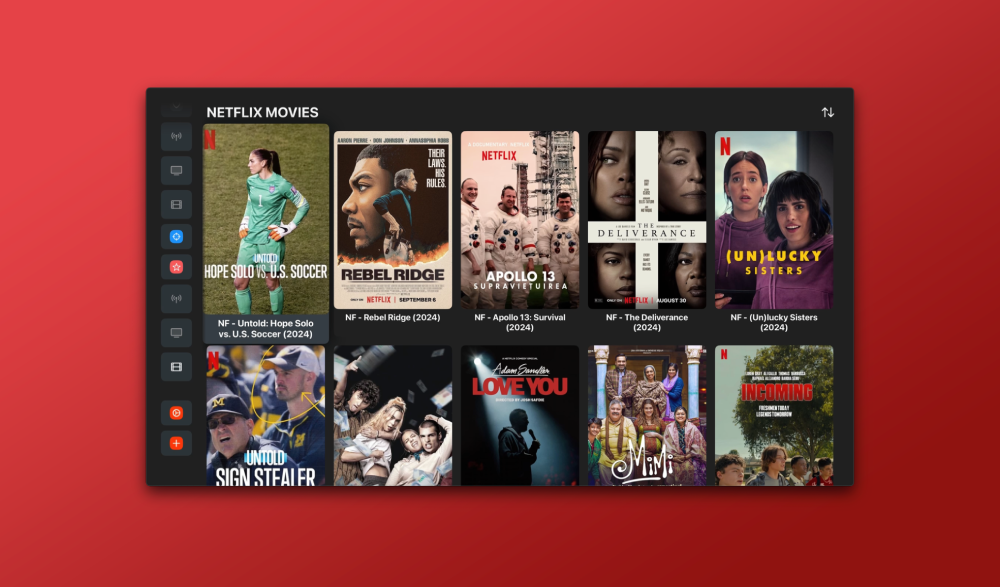
Once you’ve logged in and the playlist has finished loading, you can start watching your soccer game, hockey game, favorite movie, or TV show.